Start Cylindra
This section describes how to start cylindra, open images and prepare for the
analysis.
Launch the GUI
You can launch the GUI application using cylindra command.
cylindra
Note
The cylindra command is enabled only when you are in the virtual environment.
For conda users, you can activate with conda activate my-env
After the startup, the napari viewer will be shown with the cylindra widget added
on the right side as a dock widget.
Launch programatically
You can use the start function to launch the GUI.
The GUI object is returned.
from cylindra import start

ui = start()
napari has a integrate IPython console for running Python code. You can open it
with Ctrl+Shift+C. If you launched the napari viewer from cylindra, following
variables are pushed to the console global namespace:
ui: The currently openedcylindramain GUI object.viewer: Thenapariviewer object.np:numpymodule.ip:impymodule.pl:polarsmodule.plt:matplotlib.pyplotmodule.Path:pathlib.Pathclass.
Open an Image
API: open_image or open_image_with_reference.
GUI: File > Open image or Ctrl+K → Ctrl+O.
In GUI, an open-image dialog is shown.
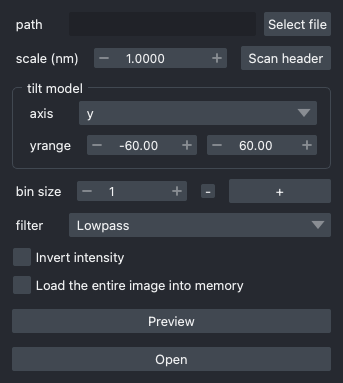
In this dialog, you can configure how to open the image. Note that the image opened in
the viewer is NOT the original image. cylindra uses a binned and optionally
filtered image for visualization.
Open an image from IMOD or RELION project
If tomograms are reconstructed using IMOD or RELION, the built-in plugins can directly read it. See here for more details.
If you have multiple tomograms to analyze
If you have multiple tomograms to analyze, you can create a batch project and use the batch analyzer to manage them. See Prepare Batch Projects for more details.
Important: Use dark background images
Most of the methods require dark-background images, while most of the raw images of electron microscopy are light-background. You have to manually prepare an inverted image file, or check the "Invert intensity" option in the open-image dialog. The loaded image can also be inverted from the menu (see Invert Images).
- Click "Select file" to select the image file to open. tiff and mrc files are supported.
- Set the appropriate pixel scale and the tilt range/axis used for calculating missing
wedges. You can click "Scan" to fill these fields automatically. To make the "Scan"
button more clever, prepare a
.cylindra-defaults.tomlfile. - Set the bin sizes used during your analysis. For example, setting to
[2, 4]will start calculation of 2× and 4× binned images, which will be loaded into the memory, and leave the original image in the memory-mapped state (ready to be read in the future). The 4× binned image will be shown in the viewer as a reference. In the later analysis, you can switch between the original, 2× binned and 4× binned images. See Use Multi-scaled Images for more details. - Set the filter to apply to the image. The filter is applied to the reference image shown in the viewer, not to the original image.
- If you want to invert the image, check "Invert intensity".
- If you want to load the original image into the memory, check "Load the entire image into memory".
- If the tomogram is stored in HDD, check "Cache image on SSD". Tomogram will be copied to the cache directory in SSD and automatically deleted at exit. This option will improve the performance a lot during your analysis.
- You can preview the selected image by clicking "Preview". A preview window will be shown, which only loads separate image slices to accelerate the image loading.
- Click "Open" to calculate the binning/filtering and show the reference image.
 New in v1.3.0 (beta)
API: open_tilt_series or open_tilt_series_with_reference.
GUI: File > Open tilt series
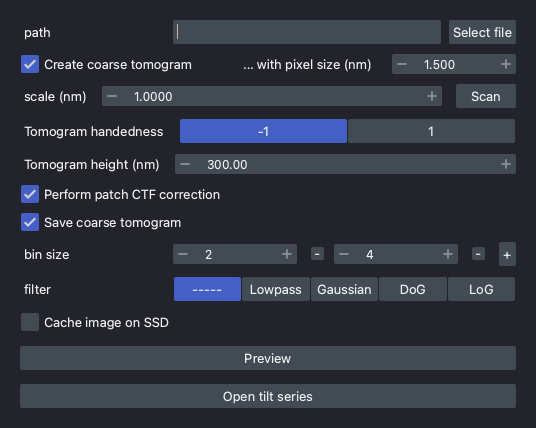
Bin-1 tomograms usually take up a lot of storage space and time to reconstruct.
Since v1.3.0, cylindra can now analyze tilt series directly by reconstructing the
subvolumes on demand. For visualization, a coarse tomogram will be generated.
- Click "Select file" to select a file that describes the tilt series. Currently,
IMOD directive file (
*.edf), or a STAR file of RELION 5 tilt series (tilt_series/*.star) are supported. - If a coarse tomogram is not generated yet, check "Create coarse tomogram" and provide the pixel size (nm) you want (usually >1.5 nm/pixel is enough, but do not exceed half of the periodicity you want to analyze!). The pixel size does not need to be an integer multiple of that of the tilt series.
- Set the appropriate pixel scale and tomogram handedness (and tomogram height in nm
for the coarse tomogram reconstruction). You can click "Scan" to fill scale and other these fields automatically. To make the "Scan" button more
clever, prepare a
.cylindra-defaults.tomlfile. Tomogram handedness depends on the image acquisition scheme you used. If you are unsure, see Checking Tomogram Handedness. - Click "Open tilt series" or "Open tilt series with reference" to start analysis.
Tilt series requires preprocessing when any subvolumes are to be cropped. The preprocessed tilt series images of each bin size will be cached in memory until next tomogram or tilt series is opened. This means that the first time you use a data of a particular bin size, it takes longer to load as the images are being preprocessed and cached.
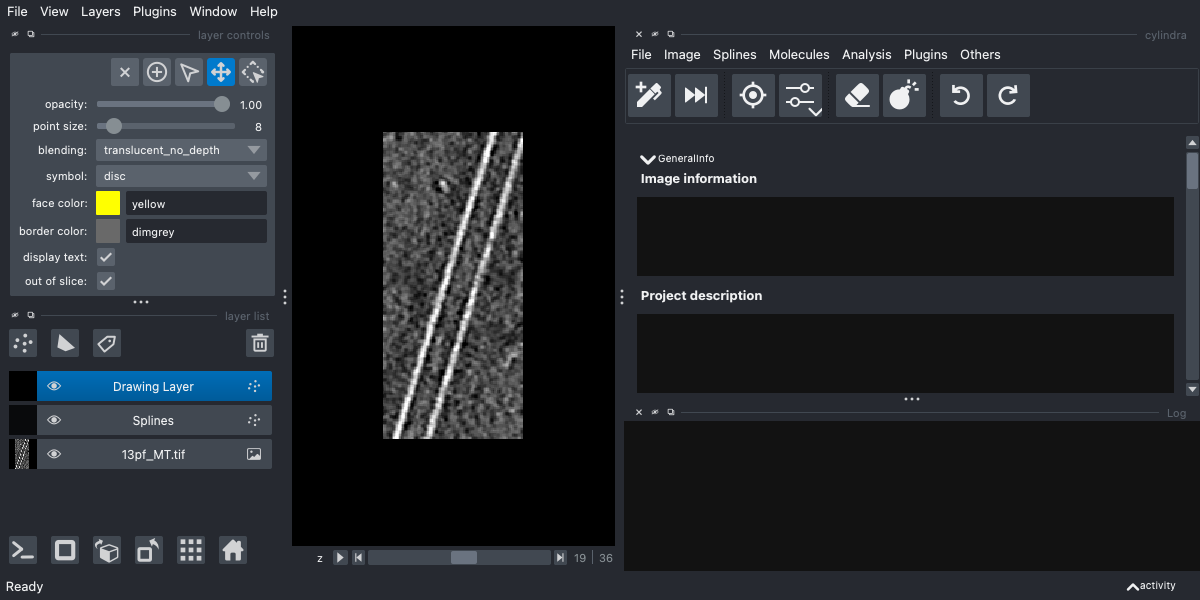
After opening an image, you'll find three layers added to the viewer:
"Drawing Layer": a Points layer used to manually draw splines."Splines": a Points layer showing the registered splines.<name of the tomogram>: an Image layer showing the reference image.
The "Drawing Layer" will be selected, with the "add points" mode activated by default.
Use Multi-scaled Images
Tomograms can be loaded as multi-scaled images, which means that you can switch between
the original and binned images. Many methods in cylindra have a bin_size argument.
All the bin sizes registered as multi-scales are available for this argument. Usually,
the bin sizes are set using the bin_size argument of the open-image dialog.
(i) Add a new bin size to the multi-scale list after you opened the image
API: add_multiscale.
GUI: File > Add multi-scale
(ii) Choose which multi-scale image to be shown in the viewer
API: set_multiscale.
GUI: File > Set multi-scale
It is useful when you have a low-resolution image (to see the overall state of your sample) and a high-resolution image (to see the detailed structures of the components) as the multi-scale images.
Invert Images
API: invert_image.
GUI: Image > Invert image
Raw images are usually light-background images, but most of the analysis methods require dark-background images. You can invert all the images (original image, multi- scaled images, and the reference image) using this method.
Note
Since the original image is memory-mapped, the inversion will be done when the image is read from the memory. Therefore, it takes a bit longer in the later analysis compared to using an already-inverted image saved separately. They are, however, not that different in most cases, because the inversion is much faster than most of the image processing methods such as cross-correlation calculation and coordinate transformation.
Note that open_image can also run this method by specifying the
invert argument.
Use a Custom Reference Image
In some cases, you may already have a reference image for each tomogram.
- Saving binned (and filtered) images does not take much storage space. For example, a 4× binning increases the total storage size only by 1/64 = 1.6%. Directly using this image as the reference image will save time.
- There are many softwares that implement powerful denoising methods, such as Topaz, cryoCARE and IsoNet. It is a good idea to use these denoised images as the reference image while using the original image for the Fourier analysis and subtomogram averaging.
To use a custom reference image, check "Use user-supplied reference image" and provide the reference path in the open-image dialog.
Alternatively, you can open a reference image after opening the tomogram using following method.
API: open_reference_image.
GUI: File > Open reference image
Process the Reference Image
Filter the Reference Image
API: filter_reference_image.
GUI: Image > Filter reference image
The reference image shown in the viewer can be filtered for better visualization. Currently, following filters are implemented:
method="LowPass": low-pass filtermethod="Gaussian": Gaussian filtermethod="DoG": Difference of Gaussian (DoG) filtermethod="LoG": Laplacian of Gaussian (LoG) filter
Note that open_image can also run this method by specifying the
filter argument.
Deconvolve the Reference Image
API: deconvolve_reference_image.
GUI: Image > Deconvolve reference image
If you have information about the contrast transfer function (CTF) of the tomogram, you can run Wiener deconvolution on the reference image. This will improve the quality of the reference image much better than the filtering methods.
The implementation of this method is directly ported from IsoNet (MIT license).
Saving the Reference Image
API: save_reference_image.
GUI: File > Save reference image
The processed reference image can be saved to a file. The save path will be recorded when the project is saved, and the reference image can directly be used when the project is loaded. See Load & Save Projects for more details.
Directory-specific defaults
New in v1.0.3
It takes time to set all the parameters in the open-image dialog every time you open a
tomogram. Since v1.0.3, you can specify directory-specific default parameters using a
.cylindra-defaults.toml file to make the "Scan" button more clever.
You can make a template toml file by running
cylindra prep-defaults
and edit the generated file. When you click the "Scan" button in the open-image dialog, the parameters in the toml file located in the same directory or any parent directories of the selected tomogram will be loaded as the default parameters.